
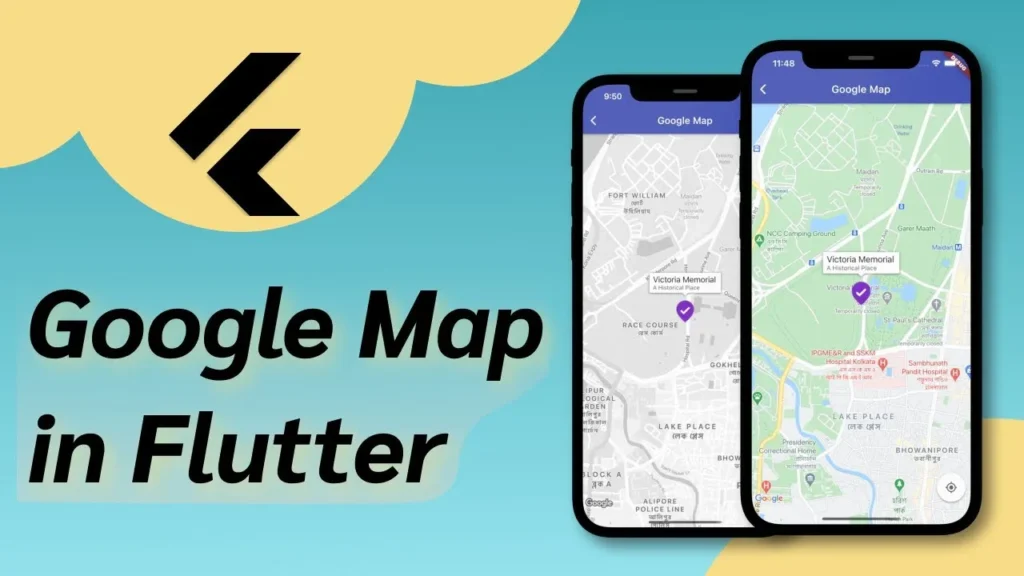
Google Maps integration is a crucial feature for many mobile apps, providing users with location-based services, navigation, and interactive maps. Flutter, a popular cross-platform framework, makes it easy to incorporate Google Maps into your app. In this comprehensive guide, we’ll cover all the aspects of using Google Maps in Flutter, complete with coding examples to help you get started.
Table of Contents
- Introduction to Google Maps in Flutter
- Setting Up the Project
- Adding Dependencies
- Obtaining API Key
- Displaying a Map
- Adding Markers
- Handling User Location
- Polylines and Polygons
- Customizing Map UI
- Geocoding and Reverse Geocoding
- Adding Info Windows
- Map Gestures and Interactions
- Clustering Markers
- Street View
- Handling Permissions
- Conclusion
1. Introduction to Google Maps in Flutter
Google Maps offers a versatile set of features for integrating maps into your Flutter app. These include displaying maps, adding markers and polygons, interacting with the map, and utilizing geolocation services.
2. Setting Up the Project
Create a new Flutter project using your preferred development environment.
flutter create google_maps_flutter_example
cd google_maps_flutter_example
3. Adding Dependencies
In your pubspec.yaml file, add the google_maps_flutter package:
dependencies:
  flutter:
    sdk: flutter
  google_maps_flutter: ^2.0.10 # Check for the latest version
Run flutter pub get to install the package.
4. Obtaining API Key
To use Google Maps in your app, you need an API key. Follow the official documentation to obtain an API key: Get API Key.
5. Displaying a Map
Let’s start by displaying a basic map on the screen.
import 'package:flutter/material.dart';
import 'package:google_maps_flutter/google_maps_flutter.dart';

void main() => runApp(MyApp());

class MyApp extends StatelessWidget {
  @override
  Widget build(BuildContext context) {
    return MaterialApp(
      home: MapScreen(),
    );
  }
}

class MapScreen extends StatefulWidget {
  @override
  _MapScreenState createState() => _MapScreenState();
}

class _MapScreenState extends State<MapScreen> {
  @override
  Widget build(BuildContext context) {
    return Scaffold(
      appBar: AppBar(title: Text('Google Maps in Flutter')),
      body: GoogleMap(
        initialCameraPosition: CameraPosition(
          target: LatLng(37.7749, -122.4194), // San Francisco coordinates
          zoom: 12,
        ),
      ),
    );
  }
}
6. Adding Markers
You can add markers to the map to indicate specific points of interest.
class _MapScreenState extends State<MapScreen> {
  GoogleMapController? mapController;
  Set<Marker> markers = {};

  void _onMapCreated(GoogleMapController controller) {
    mapController = controller;
    setState(() {
      markers.add(Marker(
        markerId: MarkerId('marker1'),
        position: LatLng(37.7749, -122.4194),
        infoWindow: InfoWindow(title: 'San Francisco'),
      ));
    });
  }

  @override
  Widget build(BuildContext context) {
    return Scaffold(
      appBar: AppBar(title: Text('Google Maps in Flutter')),
      body: GoogleMap(
        onMapCreated: _onMapCreated,
        initialCameraPosition: CameraPosition(
          target: LatLng(37.7749, -122.4194),
          zoom: 12,
        ),
        markers: markers,
      ),
    );
  }
}
7. Handling User Location
You can also display and track the user’s current location on the map.
import 'package:location/location.dart'; // Import the location package

class _MapScreenState extends State<MapScreen> {
  GoogleMapController? mapController;
  Location location = Location(); // Create a Location instance
  Set<Marker> markers = {};

  void _onMapCreated(GoogleMapController controller) async {
    mapController = controller;
    await _getUserLocation();
  }

  Future<void> _getUserLocation() async {
    final userLocation = await location.getLocation();
    setState(() {
      markers.add(Marker(
        markerId: MarkerId('userLocation'),
        position: LatLng(userLocation.latitude!, userLocation.longitude!),
        infoWindow: InfoWindow(title: 'Your Location'),
      ));
    });
  }

  @override
  Widget build(BuildContext context) {
    // ...
  }
}
8. Polylines and Polygons
You can draw polylines and polygons on the map to represent routes or areas.
import 'package:google_maps_flutter/google_maps_flutter.dart';

class _MapScreenState extends State<MapScreen> {
  // ...

  Set<Polyline> polylines = {
    Polyline(
      polylineId: PolylineId('route1'),
      points: [
        LatLng(37.7749, -122.4194),
        LatLng(37.8051, -122.4300),
        LatLng(37.8070, -122.4093),
      ],
      color: Colors.blue,
      width: 4,
    ),
  };

  Set<Polygon> polygons = {
    Polygon(
      polygonId: PolygonId('area1'),
      points: [
        LatLng(37.7749, -122.4194),
        LatLng(37.8051, -122.4300),
        LatLng(37.8070, -122.4093),
      ],
      fillColor: Colors.green.withOpacity(0.3),
      strokeColor: Colors.green,
      strokeWidth: 2,
    ),
  };

  @override
  Widget build(BuildContext context) {
    // ...
  }
}
9. Customizing Map UI
You can customize the map’s appearance by adding various UI elements.
class _MapScreenState extends State<MapScreen> {
  // ...

  @override
  Widget build(BuildContext context) {
    return Scaffold(
      appBar: AppBar(title: Text('Google Maps in Flutter')),
      body: GoogleMap(
        // ...
        mapType: MapType.normal, // Change to other map types
        myLocationButtonEnabled: true,
        myLocationEnabled: true,
        compassEnabled: true,
      ),
    );
  }
}
10. Geocoding and Reverse Geocoding
Geocoding is the process of converting an address to geographic coordinates, while reverse geocoding does the opposite.
import 'package:geocoding/geocoding.dart';

class _MapScreenState extends State<MapScreen> {
  // ...

  Future<void> _performGeocoding() async {
    List<Location> locations = await location.fromAddress('1600 Amphitheatre Parkway, Mountain View, CA');
    if (locations.isNotEmpty) {
      print('Latitude: ${locations.first.latitude}, Longitude: ${locations.first.longitude}');
    }
  }

  Future<void> _performReverseGeocoding() async {
    List<Placemark> placemarks = await location.placemarkFromCoordinates(37.7749, -122.4194);
    if (placemarks.isNotEmpty) {
      print('Address: ${placemarks.first.street}, ${placemarks.first.locality}, ${placemarks.first.country}');
    }
  }

  @override
  Widget build(BuildContext context) {
    // ...
  }
}
11. Adding Info Windows
Info windows provide additional information when a user taps on a marker.
class _MapScreenState extends State<MapScreen> {
  // ...

  void _onMarkerTapped(MarkerId markerId) {
    // Handle marker tap event
  }

  @override
  Widget build(BuildContext context) {
    return Scaffold(
      appBar: AppBar(title: Text('Google Maps in Flutter')),
      body: GoogleMap(
        // ...
        markers: markers,
        onTap: (LatLng latLng) {
          // Hide info window when tapping on the map
          setState(() {
            markers.forEach((marker) {
              markers.remove(marker.copyWith(infoWindowParam: InfoWindow.noText));
            });
          });
        },
        onMarkerTapped: _onMarkerTapped,
      ),
    );
  }
}
12. Map Gestures and Interactions
You can enable various map gestures to enhance user interaction.
class _MapScreenState extends State<MapScreen> {
  // ...

  @override
  Widget build(BuildContext context) {
    return Scaffold(
      appBar: AppBar(title: Text('Google Maps in Flutter')),
      body: GoogleMap(
        // ...
        zoomGesturesEnabled: true,
        tiltGesturesEnabled: true,
        rotateGesturesEnabled: true,
        scrollGesturesEnabled: true,
      ),
    );
  }
}
13. Clustering Markers
When dealing with a large number of markers, clustering helps to improve performance and readability.
import 'package:google_maps_cluster_manager/google_maps_cluster_manager.dart';

class _MapScreenState extends State<MapScreen> {
  // ...

  ClusterManager<YourMarkerModel> clusterManager;

  void _initClusterManager() {
    clusterManager = ClusterManager<YourMarkerModel>(
      markers: markers.map((marker) {
        return YourMarkerModel(
          id: marker.markerId,
          position: marker.position,
          // Other properties...
        );
      }).toList(),
      // Other configuration...
    );
  }

  @override
  void initState() {
    super.initState();
    _initClusterManager();
  }

  @override
  Widget build(BuildContext context) {
    return Scaffold(
      appBar: AppBar(title: Text('Google Maps in Flutter')),
      body: GoogleMap(
        // ...
        markers: Set<Marker>.of(clusterManager.markers.values),
      ),
    );
  }
}
14. Street View
You can also display Street View imagery in your Flutter app.
import 'package:google_maps_flutter_platform_interface/google_maps_flutter_platform_interface.dart';

class _MapScreenState extends State<MapScreen> {
  // ...

  StreetViewController? streetViewController;

  void _onStreetViewCreated(StreetViewController controller) {
    streetViewController = controller;
    streetViewController!.setPosition(LatLng(37.7749, -122.4194));
  }

  @override
  Widget build(BuildContext context) {
    return Scaffold(
      appBar: AppBar(title: Text('Google Maps in Flutter')),
      body: GoogleMap(
        // ...
        onStreetViewCreated: _onStreetViewCreated,
      ),
    );
  }
}
15. Handling Permissions
Remember to handle location permissions properly to ensure a smooth user experience.
class _MapScreenState extends State<MapScreen> {
  // ...

  Future<void> _requestLocationPermission() async {
    final status = await location.requestPermission();
    if (status == PermissionStatus.granted) {
      // Permission granted, proceed with using location
    } else {
      // Permission denied, handle accordingly
    }
  }

  @override
  Widget build(BuildContext context) {
    // ...
  }
}
16. Conclusion
In this guide, we’ve covered a wide range of aspects related to integrating Google Maps into a Flutter app. From displaying a simple map to adding markers, customizing the UI, and incorporating advanced features like geocoding and clustering, you now have the knowledge to create powerful and interactive map experiences for your users. Experiment with these concepts, explore the official documentation, and create stunning map-based apps using the capabilities of Google Maps and Flutter. Happy coding!